AI Capabilities Tutorial
Welcome to the Visulate AI Tutorial! This guide will walk you through the system’s core Agentic AI features. By the end of this tutorial, you will understand how to use autonomous agents to explore, visualize, and document your Oracle database.
Prerequisites
- A running Visulate instance.
- A connected Oracle database.
- Google Gemini AI enabled (see Quickstart).
Step 1: Open the AI Chat Interface
The AI chat is your primary gateway to the system’s agents.
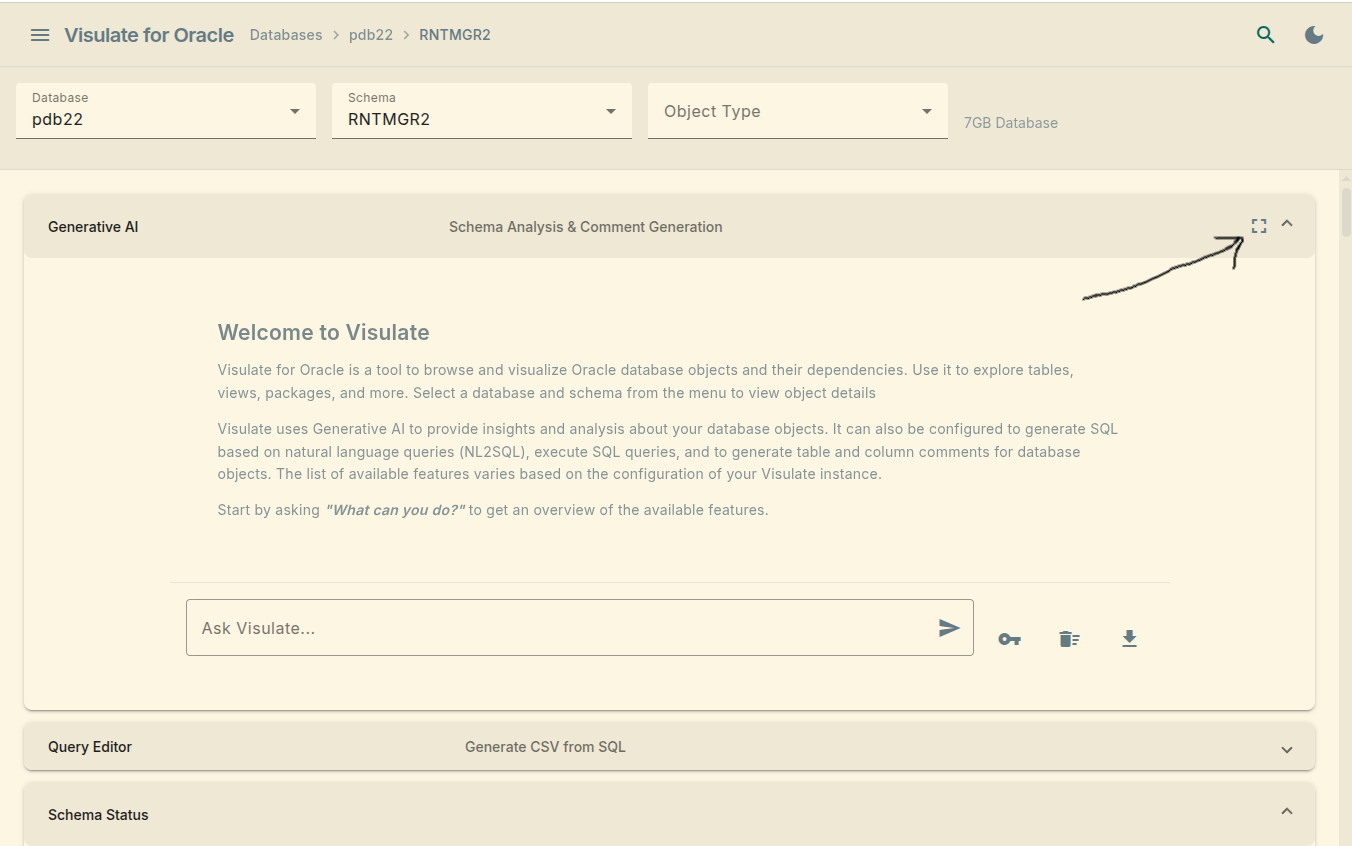
- Log in to the Visulate UI.
- Select a Database and a Schema from the dropdown menus in the header.
- Look for the Generative AI accordion panel on the right side of the screen.
- Click to expand it. You are now connected to the Root Agent.
[!NOTE] The Root Agent is your “dispatcher.” It understands your intent and delegates complex tasks to specialized sub-agents.
Step 2: Discover Your Schema
Let’s start by asking the AI to give us an overview of what’s in our database.
Try this prompt:
“Give me a high-level analysis of the current schema.”
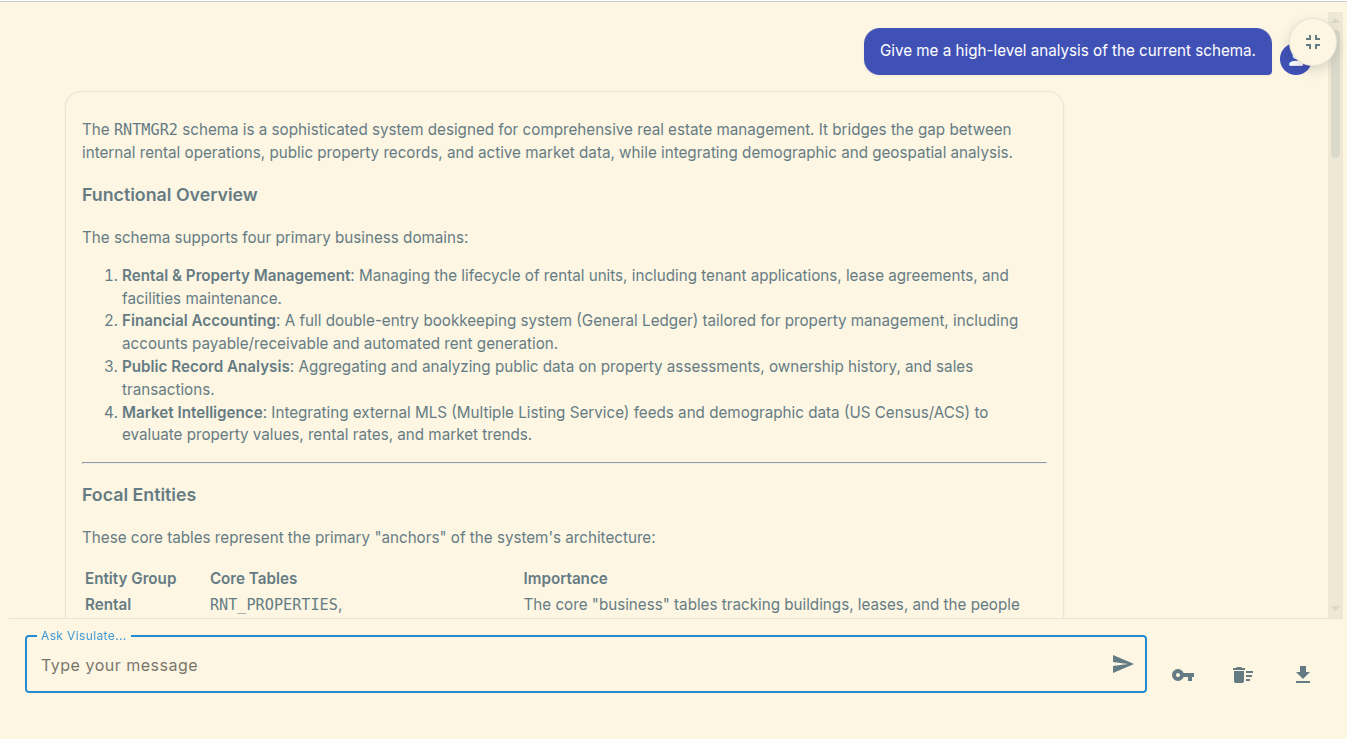
What to expect:
- The AI will query the data dictionary to find object counts (tables, views, packages).
- It will identify the most complex objects or those with the most dependencies.
- It may suggest areas that need attention, such as invalid objects.
Step 3: Visualize with an ERD
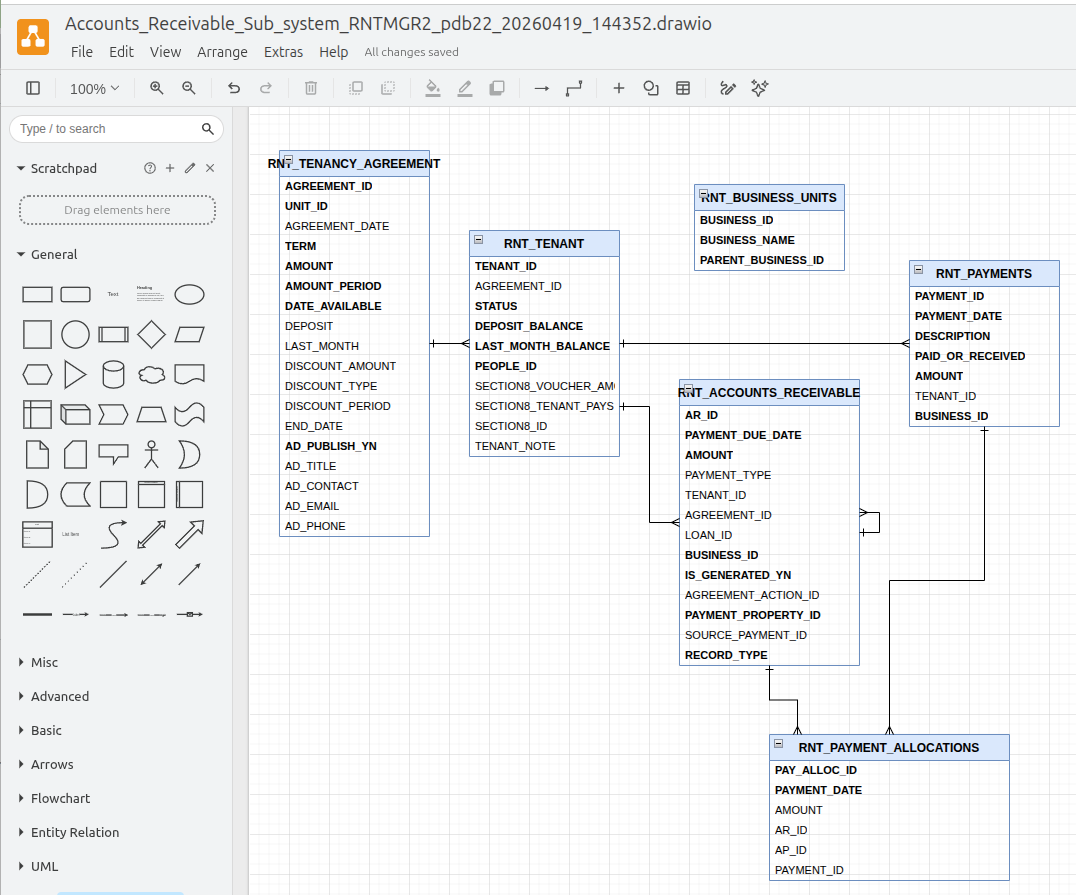
Visulate can generate Entity Relationship Diagrams (ERDs) on the fly using Mermaid syntax.
Try this prompt:
“Generate an ERD for the main business tables in this schema.”
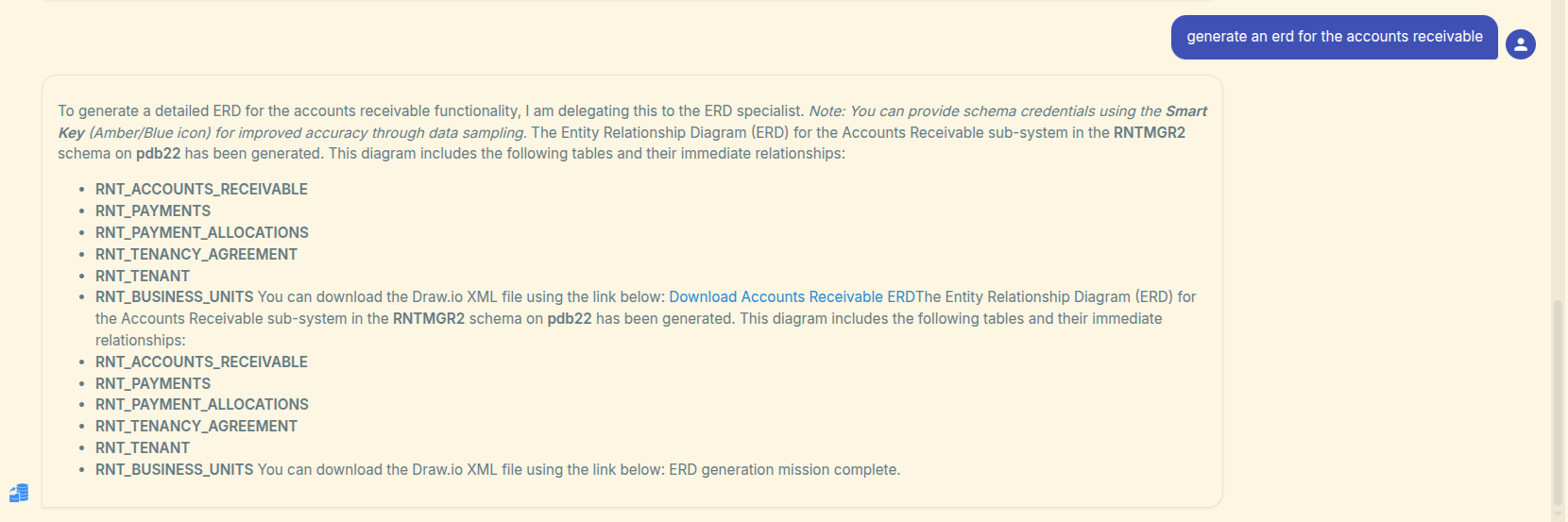
What to expect:
- The Root Agent will call the ERD Agent.
- The agent will analyze foreign key relationships.
- A link to download a Draw.io diagram will appear in the chat window. You can then open the diagram in draw.io to view or edit it.
Step 4: Ask for Data (NL2SQL)
Unlike a traditional query editor where you write SQL, the NL2SQL agent handles the entire process: searching for tables, writing the SQL, and executing it.
Try this prompt:
Enter a prompt based on the result of the schema analysis in Step 2. For example:
“List the top 5 customers by total order volume.”
What to expect:
- The agent will search your schema for relevant tables.
- It will write and automatically execute the SQL query.
- The results will be presented directly in the chat window.
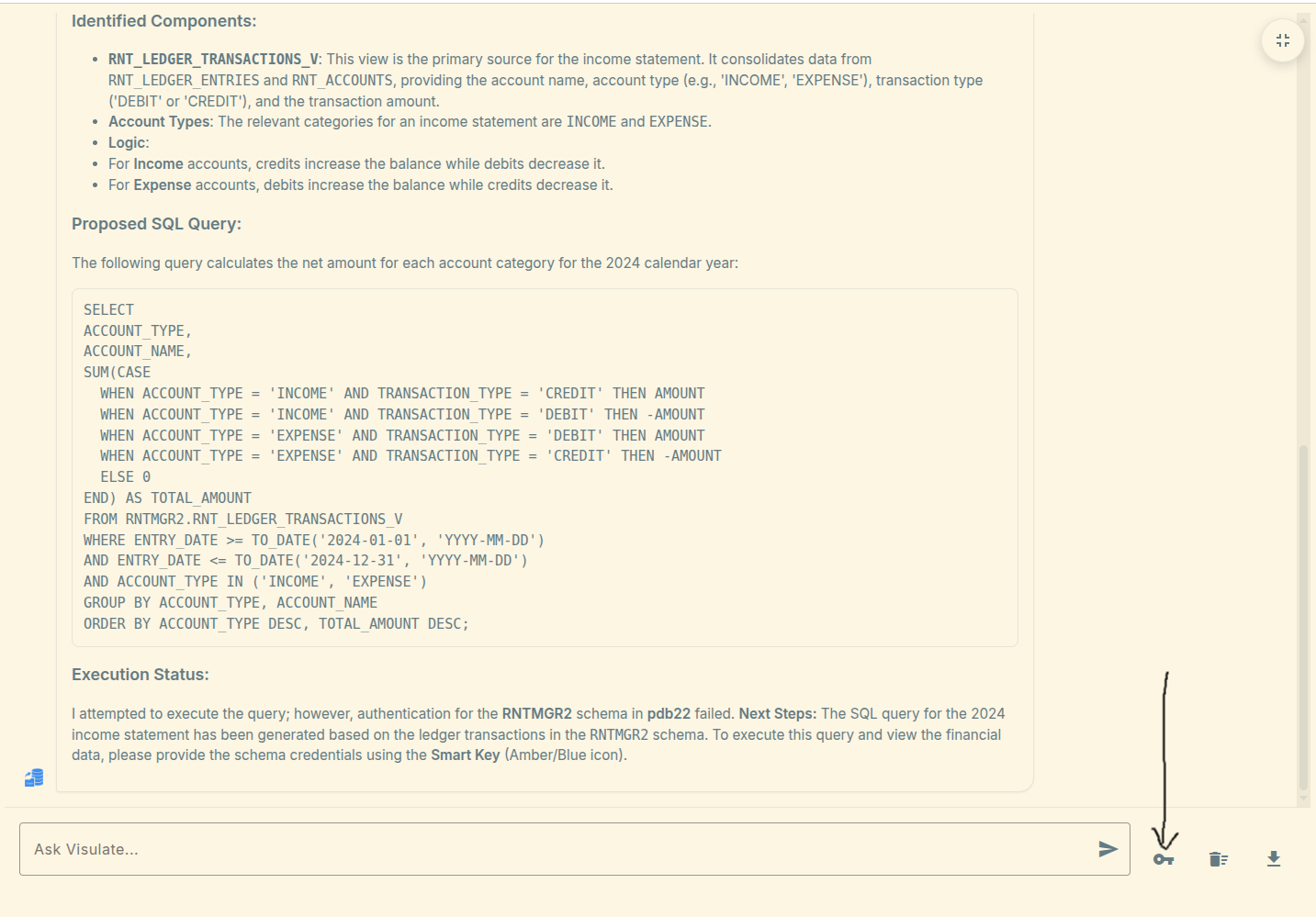
Handling Credentials with the Smart Key: To execute queries, the agent needs database credentials. If it doesn’t have them, it will ask you to provide them.
- Look for the Smart Key icon (an Amber or Blue key icon) in the chat header or the main UI.
- Click the icon to enter your Database Username and Password.
- Once provided, the agent can autonomously execute queries for the rest of your session.
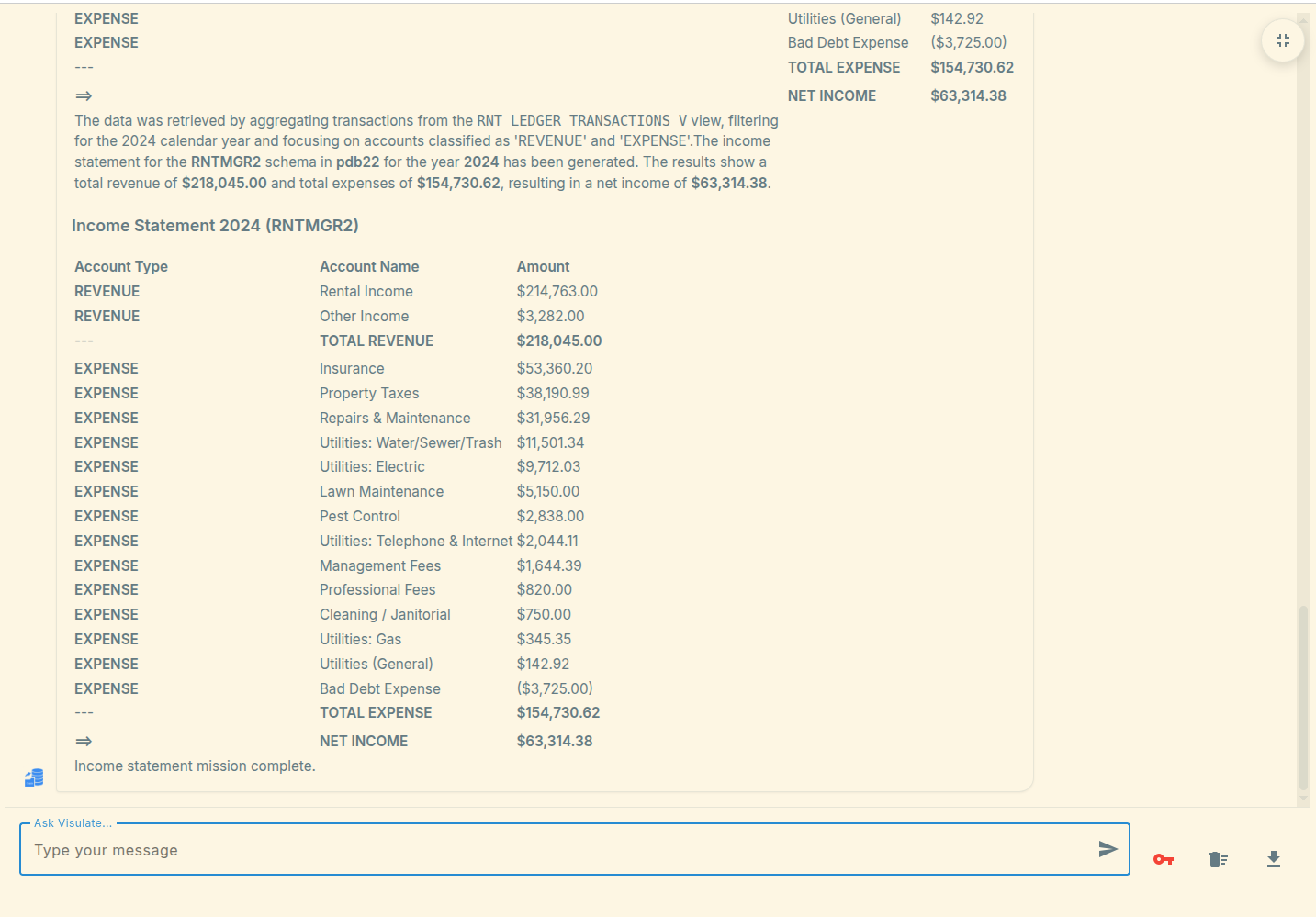
[!TIP] You don’t need to navigate to the Query Editor. The agent brings the data to you!
Step 5: Document Your Code
The Comment Generator Agent helps you document legacy code. It is one of the most important tools for improving the overall AI experience in Visulate.
Try this prompt:
“Find tables in this schema that are missing comments and suggest documentation for them.”
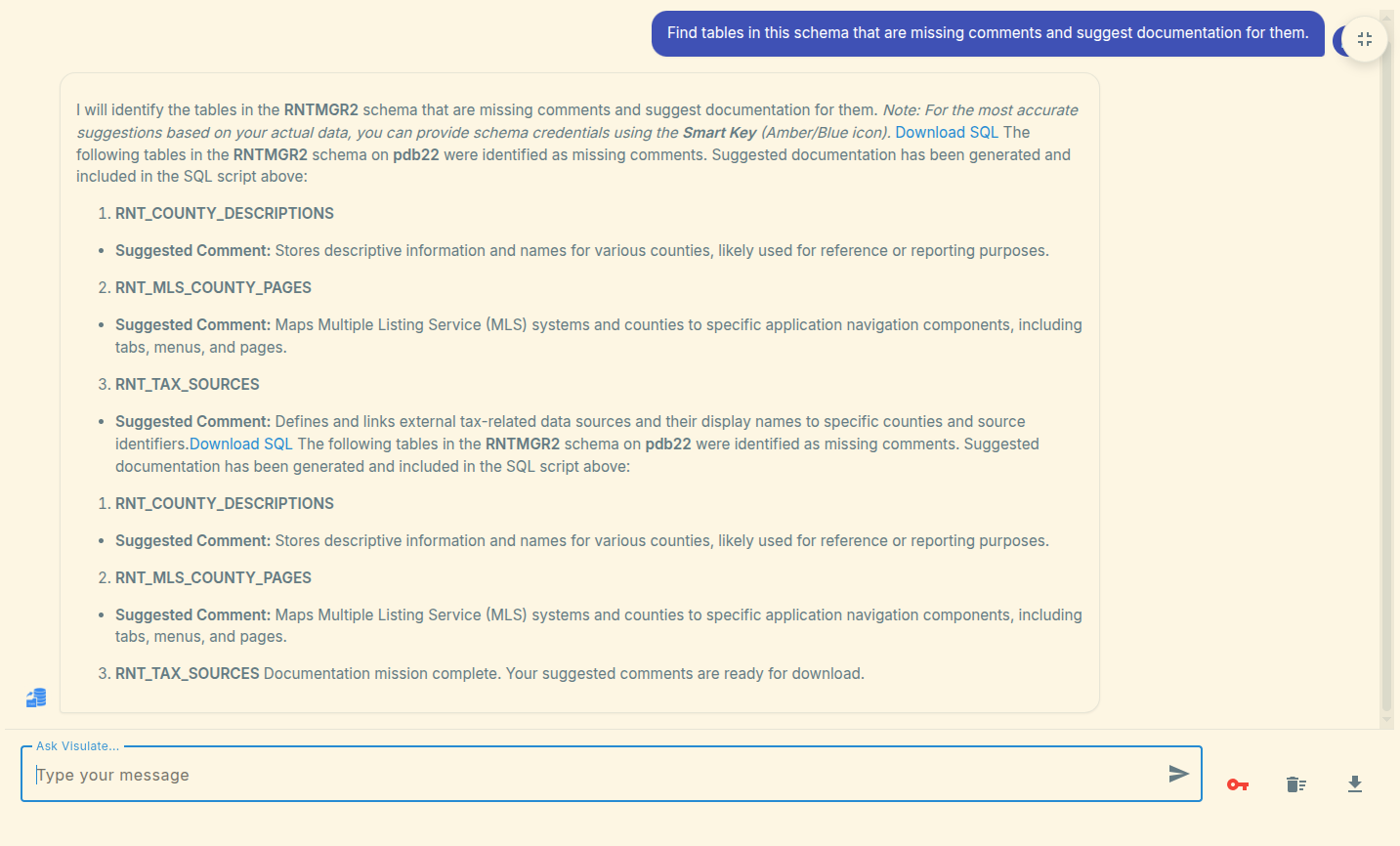
Why this matters for NL2SQL: The NL2SQL agent (Step 4) relies heavily on table and column comments to understand your business data.
- Better Context: When you provide comments, the AI doesn’t have to guess the meaning of cryptic column names like
TXN_TYP_CD. - Higher Accuracy: Clear documentation significantly improves the accuracy of AI-generated queries and diagrams.
Timeout and Large Schemas: Generating documentation for an entire schema is a resource-intensive task.
- Time Limits: To ensure system stability, the agent has a built-in processing time limit.
- Resume Offset: If the agent reaches this limit before finishing, it will provide a Download SQL link for the work completed so far and a
RESUME_OFFSET. - Multiple Sessions: For large schemas, you may need to ask the agent to “continue from the last offset” several times to document everything.
[!TIP] Pro Tip for Developers: Save the generated SQL files to your version control system (Git) and apply them to your database incrementally. This ensures your documentation is persistent and benefits everyone using the system.
Step 6: Advanced Troubleshooting & Comparison
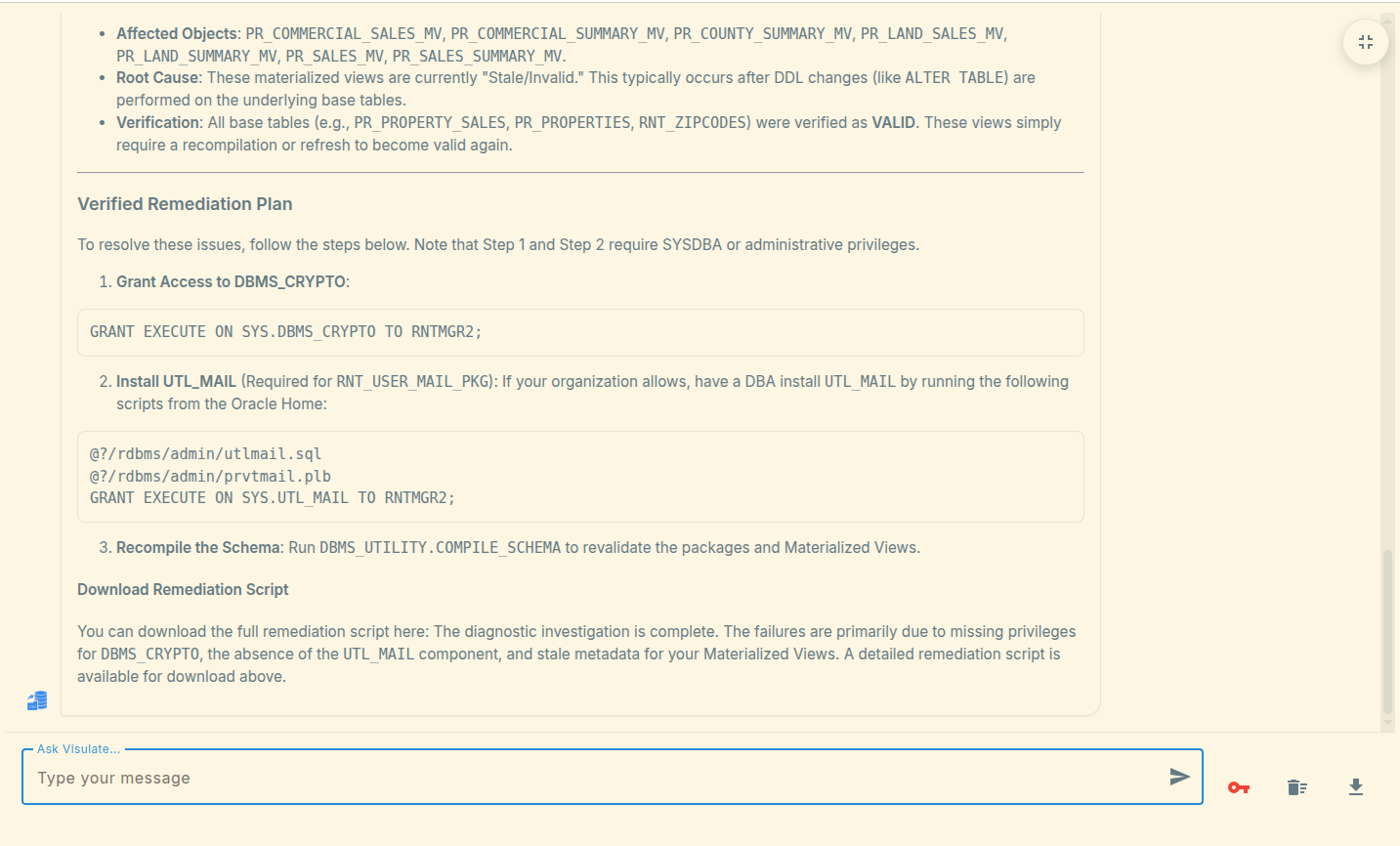
The AI can help you find and fix issues like invalid PL/SQL, circular dependencies, or discrepancies between environments.
Try this prompt:
“Check for any invalid objects and explain why they are failing.”
Cross-Instance Comparison: One of the most powerful features is the ability to compare objects across different database instances (e.g., Dev vs. UAT).
Try this prompt:
“Compare the ‘APPS_USER’ schema in ‘PDB_DEV’ with the ‘APPS_USER’ schema in ‘PDB_UAT’.” OR “Compare the ‘SALARY_CALC’ package body in ‘DEV_DB’ with the one in ‘PROD_DB’.”
What to expect:
- The Schema Comparison Agent will analyze both environments.
- It will identify missing objects, extra objects, and differences in row counts or metadata.
- It will generate a detailed Comparison Report with a download link.
- The agent will provide an “Expert Analysis” of the patterns it finds (e.g., “The UAT environment appears to be missing several grants required for the new UI”).
Conclusion & Next Steps
You’ve just scratched the surface of what Visulate’s Agentic AI can do. Remember that the agents are conversational—you can always ask follow-up questions to refine your results!
Ready to build? Take the insights you’ve gathered and turn them into a modern application.
- Next Step: Explore Agentic Code Generation to see how the AI can build context-aware APIs in Java, Python, or Node.js directly from your schema.
[!TIP] If you ever get stuck, just ask the AI: “What else can you help me with?”
Copyright © Visulate LLC, 2019, 2025 Privacy Policy