GKE Deployment Reference (Deprecated)
[!IMPORTANT] This documentation is for historical reference. The GKE deployment for Visulate for Oracle has been deprecated in favor of the Virtual Machine (VM) deployment.
GKE Architecture
Kubernetes Architecture
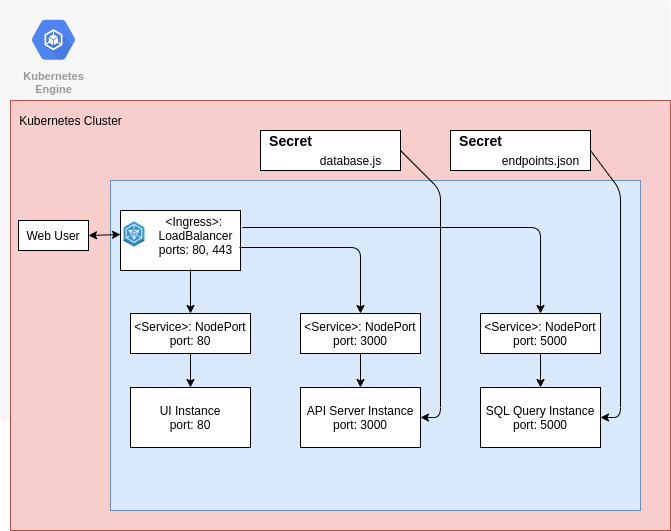
Web users connect to the application via a ClusterIP resource. This exposes an nginx deployment which proxies requests to the UI, API or SQL Service as required. The proxy service exposes an Network Endpoint Group (NEG) for inclusion in a load balancer backend configuration. The load balanced backend service uses Identity Aware Proxy (IAP) to control access to the application.
Database registration is performed using a Secret. The Secret manifest delivers the database.js configuration file that the Express server reads during initialization as part of the API Server deployment. A similar mechanism is used to deliver the SQL Query Engine’s endpoints.json file.
The UI and API Server deployment manifests include sidecar containers to support Google Cloud Platform (GCP) integration. The UI and API Server manifests use sidecar containers to make log file contents available to Cloud Logging. The API Server manifest creates 2 additional sidecars to support GCP Marketplace. The SQL Query Engine sends its logs to stderr and stdout instead of writing to a file. This avoids the need for a sidecar to populate Cloud Logging
Visulate for Oracle on GKE uses a Kubernetes-native architecture with separate deployments for UI, API, and SQL Query Engine components.
GKE Quickstart
Before you begin
- Identify or create a Kubernetes cluster in Google Cloud.
- Install Visulate from the Google Cloud Marketplace Console.
Configure an instance
- Purchase the plan and click Configure.
- Select a namespace (e.g.,
visulate-01). - Deploy the components.
Create a Load Balancer
Visulate creates an Nginx proxy service which exposes a network endpoint group (NEG). Create a load balancer with the NEG as a backend.
Register your database connection
A kubernetes secret is used to pass database connection details. Create a file called db-connections.js and create a secret:
kubectl create secret generic oracle-database-connections --from-file=database.js=./db-connections.js
Edit the API deployment to mount this secret.
Manual GKE Installation
Prerequisites
gcloud,kubectl,docker,helm.- Configure
gcloudas a Docker credential helper.
Application Resource Definition
kubectl apply -f "https://raw.githubusercontent.com/GoogleCloudPlatform/marketplace-k8s-app-tools/master/crd/app-crd.yaml"
Deployment via Helm
Use helm template to expand the manifest and kubectl apply to deploy.
helm template $APP_INSTANCE_NAME chart/visulate-for-oracle \
  --namespace "$NAMESPACE" \
  --set apiServer.image.repo="$IMAGE_VISULATE" \
  --set apiServer.image.tag="$TAG" \
  ...
  > "${APP_INSTANCE_NAME}_manifest.yaml"

kubectl apply -f "${APP_INSTANCE_NAME}_manifest.yaml"
Database Registration
The initial deployment from GCP Marketplace provisions an API Server with no registered databases. You must create and apply a database registration file. A Kubernetes Secret is used to deliver a database registration file to the cluster. After the secret has been applied the API Server deployment is updated to use it.
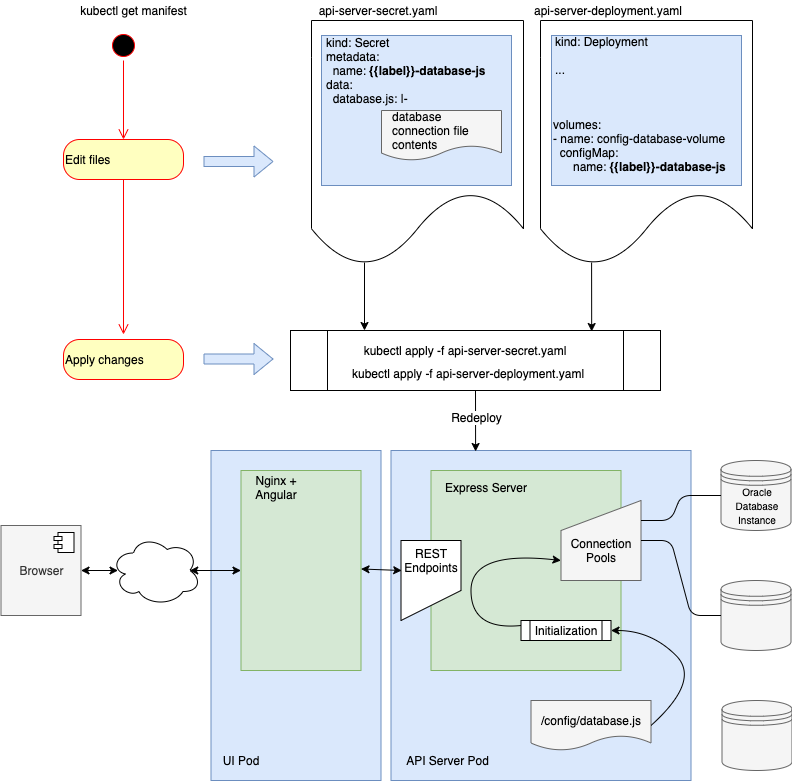
Create a database registration file
Create a registration file to identify your database connections. Cut and paste the secret below into a text editor or download from GitHub. Edit connections in the endpoints array to identify the databases you want to register. Add or remove connection objects as needed.
const endpoints = [
{ namespace: 'oracle18XE',
  description: '18c XE pluggable database instance running in a docker container',
  connect: { poolAlias: 'oracle18XE',
            user: 'visulate',
            password: 'HtuUDK%?4JY#]L3:',
            connectString: 'db20.visulate.net:41521/XEPDB1',
            poolMin: 4,
            poolMax: 4,
            poolIncrement: 0,
            poolPingInterval: 0
          }
},
{ namespace: 'oracle11XE',
  description: '11.2 XE database',
  connect: { poolAlias: 'oracle11XE',
            user: 'visulate',
            password: '7>rC4P?!~U42tS^^',
            connectString: 'db20.visulate.net:49161/XE',
            poolMin: 4,
            poolMax: 4,
            poolIncrement: 0,
            poolPingInterval: 0
          }
}
];
module.exports.endpoints = endpoints;
Tip: keep a copy of the database registration file for future use. For example, when updating to a new version of Visulate or to create a new secret after changing the database passwords.
Validate the file for JavaScript syntax errors
Use a JavaScript code editor or lint tool to check the registration file for syntax errors before continuing. For example, a missing comma in the endpoints object would look like this in in Visual Studio Code:
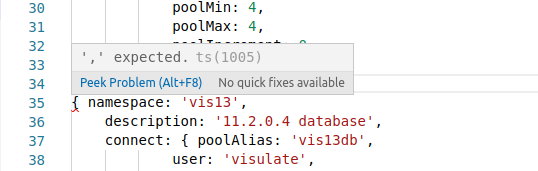
or this in jshint:
# install jshint (do this once)
sudo npm install -g jshint

# create a configuration file (do this once)
echo '{ "esversion": 6 }' > /tmp/jshint.conf

# test the file
jshint --config /tmp/jshint.conf db-registration.js

sample-db-registration.js: line 13, col 1, Expected ']' to match '[' from line 1 and instead saw '{'.
sample-db-registration.js: line 13, col 2, Missing semicolon.
sample-db-registration.js: line 13, col 14, Label 'namespace' on oracle11XE statement.
sample-db-registration.js: line 14, col 3, Expected an assignment or function call and instead saw an expression.
sample-db-registration.js: line 14, col 14, Missing semicolon.
sample-db-registration.js: line 14, col 3, Unrecoverable syntax error. (53% scanned).

6 errors
Apply the registration file as a new Kubernetes secret
Create a Kubernetes secret called oracle-database-connections with database.js as a key the registration file contents as its value:
kubectl create secret generic oracle-database-connections --from-file=database.js=./db-registration.js --namespace=test-ns
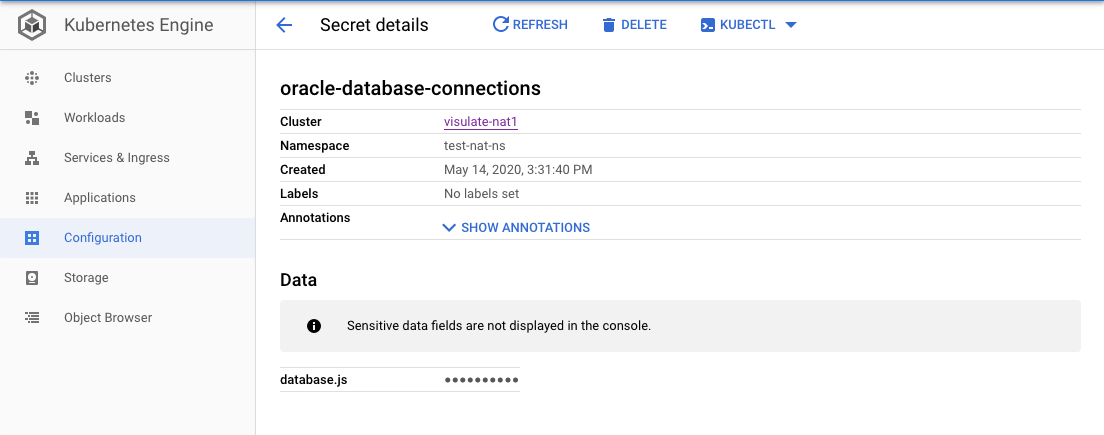
Note: the secret name is not important but the secret’s key must be database.js
The secret details should now appear in the Kubernetes UI.
Update the API Server deployment
Find the API Server deployment name:
$ kubectl get deploy --namespace=test-ns
NAME                                      READY   UP-TO-DATE   AVAILABLE   AGE
test-deployment-visulate-for-oracle-api   1/1     1            1           43h
test-deployment-visulate-for-oracle-ui    1/1     1            1           43h
Download the API Server deployment manifest
kubectl get deploy test-deployment-visulate-for-oracle-api --namespace=test-ns -oyaml > deployment.yaml
Edit the downloaded deployment manifest. Update the secretName with the value from the previous step (use kubectl get secret if you forgot to make a note of the value).
apiVersion: extensions/v1beta1
kind: Deployment
metadata:
  annotations:
    deployment.kubernetes.io/revision: "1"

...

      volumes:
      - secret:
          defaultMode: 420
          secretName: oracle-database-connections
        name: config-database-volume
      - emptyDir: {}
        name: logfiles
status: {}
Tip: the API server deployment manifest is quite long, look for a volume’s secret called “config-database-volume”. It should have a default secretName in the form -empty-database-array
Validate the edited manifest:
$ kubectl apply --dry-run=client --validate --namespace=test-ns -f deployment.yaml
Apply the deployment manifest:
$ kubectl apply --namespace=test-ns -f deployment.yaml
Note: the API server deployment can also be updated using the GKE UI as shown in the quickstart guide
Test the connections
Wait for the updated deployment to apply then test the connections. Call the “endpoints” endpoint to list registered database connections:
$ curl https://visulate.mycorp.com/endpoints/
{"mptest":"35.232.143.223:51521/XEPDB1"}
The registered connections should also appear in the database dropdown in the UI.
Follow the steps in the troubleshooting guide if some or all of your database connections are missing
Deregister connections
Database connections that are no longer required should be deregistered to avoid unnecessary charges.
Deregistration follows the same process as registration. A new secret is applied with the connection removed and the API Server deployment is updated.
Copyright © Visulate LLC, 2019, 2025 Privacy Policy